Card Vault+ user guide
Card Vault+ is a Trello Power-Up that protects your team from losing important card content. It saves snapshots of Trello cards in a secure backend so you can:
- Recover deleted cards
- Restore older versions when a description or checklist was overwritten
- Browse saved versions without leaving Trello
Card Vault+ focuses on card recovery, not full workspace backup. It works inside Trello — you do not need a separate admin console.
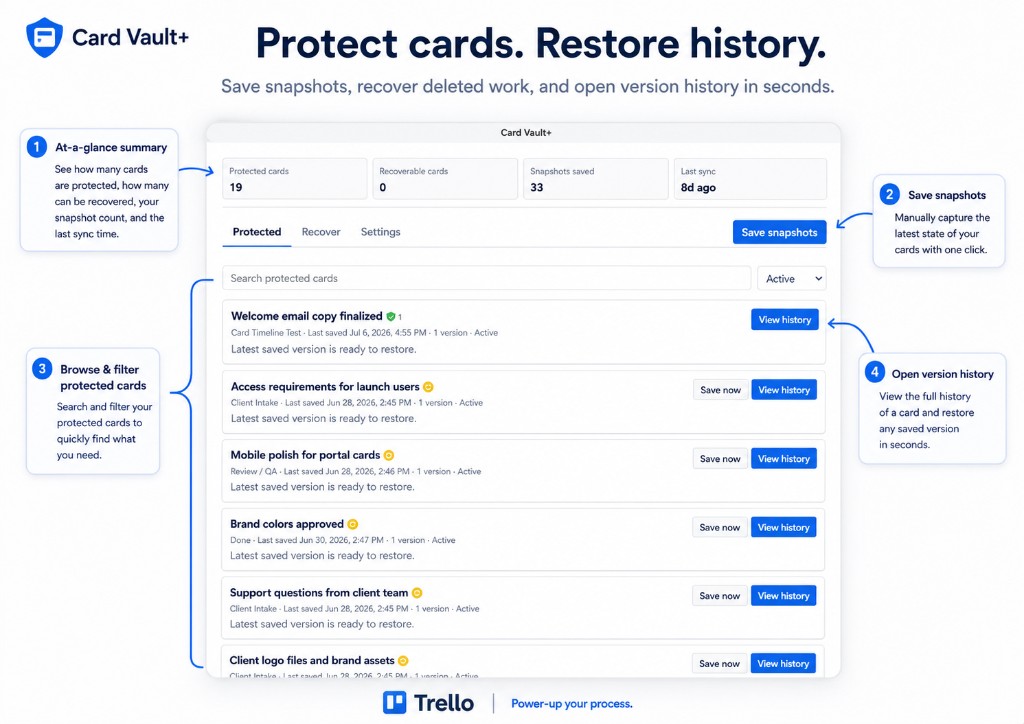
What you can do
| Feature | What it does |
|---|---|
| Board protection | Turn on Card Vault+ for a board and sync cards into the vault |
| Automatic snapshots | Save card versions on a schedule or when cards change |
| Manual snapshots | Save the current card state on demand |
| Card history | View saved versions for a single card |
| Recover deleted cards | Recreate a missing card from a saved snapshot |
| Restore older content | Update an existing card from a previous version |
| Card badges | See protection status directly on the card front |
Where to open Card Vault+ in Trello
- Board button — click Card Vault+ in the board header for the full dashboard.
- Card back section — open a card, scroll to Card Vault+ History, and click View history.
- Card badges — look for the Card Vault+ badge on protected cards.
- Power-Up settings — open Card Vault+ Settings from the board Power-Up menu.
Quick start
- Install Card Vault+ on your board
- Connect your Trello account
- Enable protection for the board
- Open the board dashboard to review protected and recoverable cards
Important to know
- Restore creates or updates Trello cards — Card Vault+ does not magically undelete the original Trello object. Deleted cards are recovered as new cards with the saved content.
- Attachment files are not fully backed up — Card Vault+ stores attachment metadata (name, URL, type) but not the file itself in the current version.
- Your data lives on Card Vault+ servers — snapshots are stored securely in a database, not in your browser cache.
Need help? See the FAQ or email support@nikaj.dev.