Board dashboard
The board dashboard is the main control center for Card Vault+. Open it from the Card Vault+ button in the Trello board header.
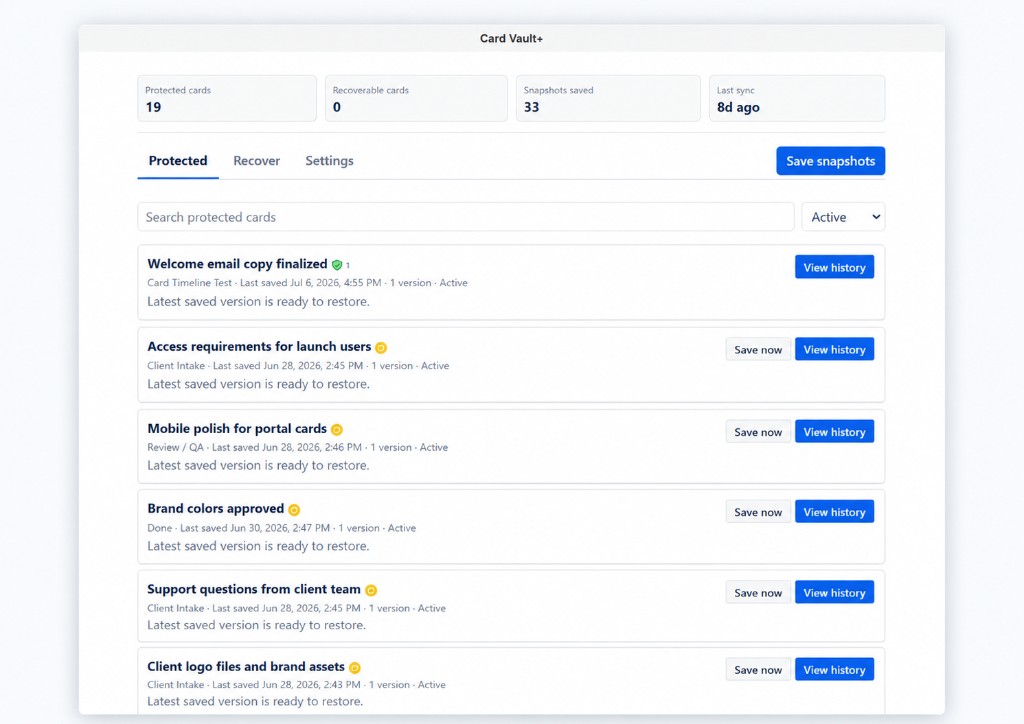
Dashboard summary
At the top you see a quick health summary:
- Protected cards — active cards with saved snapshots
- Recoverable — deleted or missing cards you can restore
- Snapshots saved — total snapshots stored for this board
- Last sync — timestamp of the last successful sync
Tabs
Protected
Shows cards currently on the board that Card Vault+ is tracking.
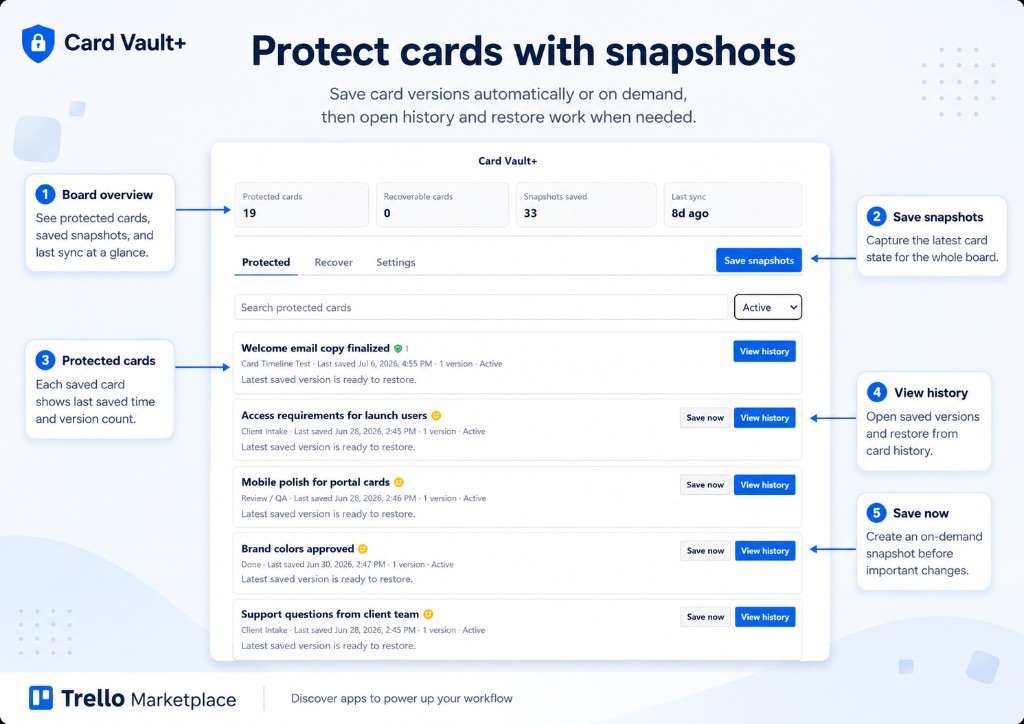
See Card snapshots for a walkthrough of saving and reviewing protected cards.
- Search — filter by card title
- Active / Archived — switch between open and archived cards
- Save snapshot — click Save now on a card row to save the latest state on demand
- View history — open the card's saved versions
Archived cards
Switch the filter to Archived to find cards that are archived in Trello but still have saved snapshots in Card Vault+.
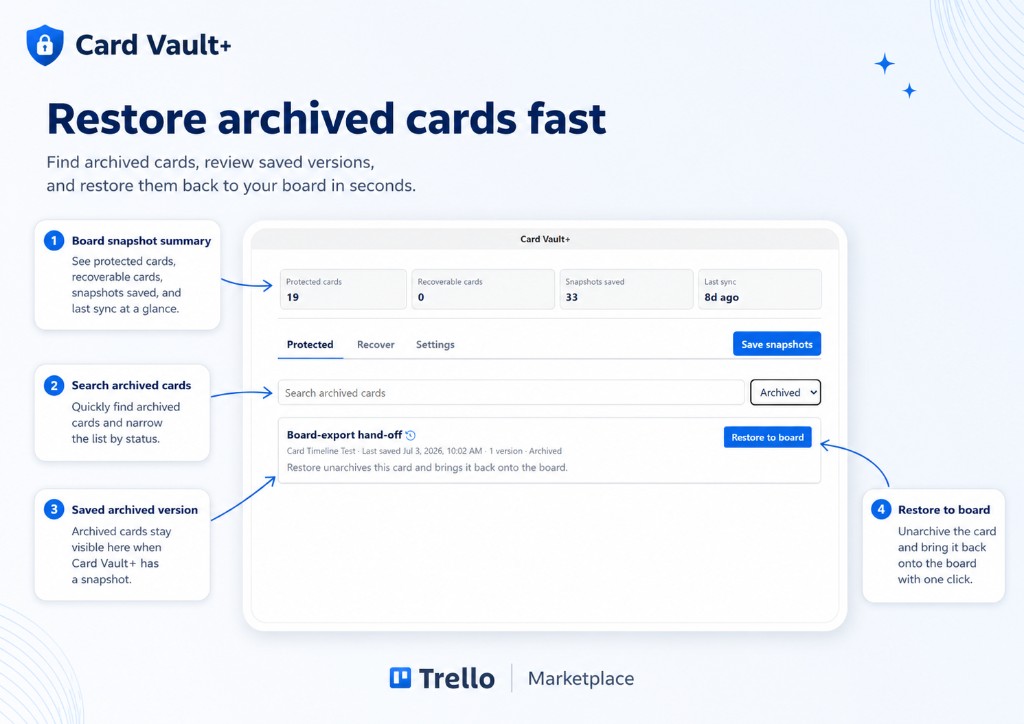
From the archived list you can:
- Search archived cards by title
- Review the last saved version and snapshot date
- Click Restore to board to unarchive the card and bring it back onto the board
Use Needs attention to find cards that changed since their last snapshot or have no snapshot yet.
Recover
Shows cards that no longer appear on the board but still have saved snapshots — typically deleted cards.
From here you can:
- Review the last known card name and list
- Open Restore to recreate the card from a snapshot
Card Vault+ opens the Recover tab automatically when recoverable cards exist.
Settings
Board-level configuration for snapshots, retention, webhooks, and badge display.
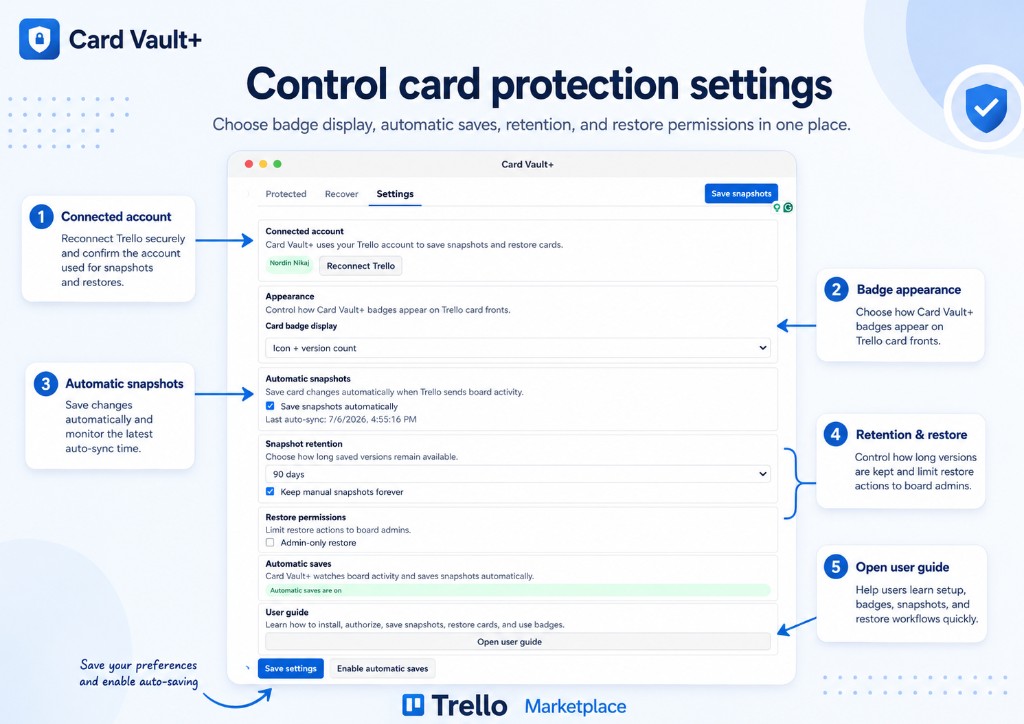
See Settings for a walkthrough of each section.
Saving snapshots from the dashboard
On any card row in the Protected tab:
- Click Save now on a card row (or use Save snapshots for the whole board, or bulk save from Needs attention).
- Card Vault+ captures the current Trello card state.
- If nothing changed since the last snapshot, you see No changes since the last snapshot.
Tips
- Reload the board after a large initial sync to refresh card badges.
- Use Needs attention after bulk edits to catch cards that changed before the next automatic snapshot.
- If the dashboard shows an error, check authorization and Settings webhook status.