Card snapshots
A snapshot is a saved copy of a Trello card at a point in time. Card Vault+ stores snapshots in its backend database so recovery does not depend on your browser.
Open the board dashboard Protected tab to review saved cards, save on demand, and open version history.
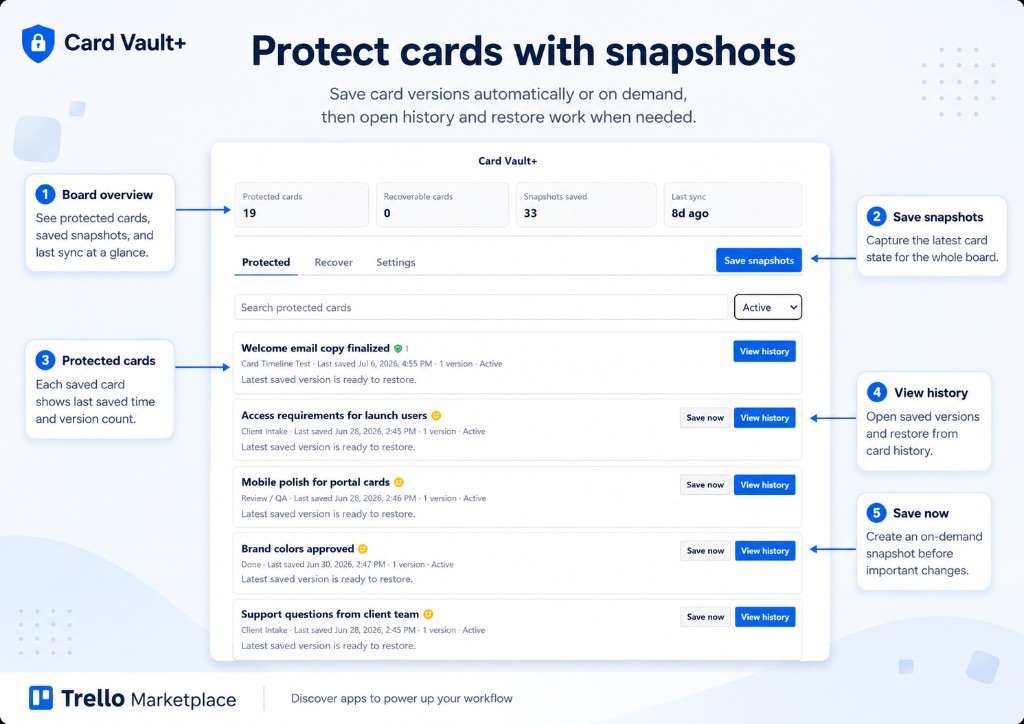
Protected tab at a glance
The annotated overview above maps to the main snapshot workflow on the Protected tab:
| # | Area | What it does |
|---|---|---|
| 1 | Board overview | Protected cards, recoverable cards, snapshots saved, and last sync at a glance |
| 2 | Save snapshots | Capture the latest card state for the whole board |
| 3 | Protected cards | Each row shows last saved time, version count, and status |
| 4 | View history | Open saved versions and restore from card history |
| 5 | Save now | Create an on-demand snapshot for one card before important changes |
See the board dashboard for Recover and Settings tabs.
What is saved in a snapshot
Depending on board settings, snapshots can include:
- Card name and description
- List name and position
- Labels and members
- Due date and start date
- Checklists and checklist items
- Attachment metadata (name, URL — not the file itself)
- Comment metadata (when enabled)
Snapshot sources
Card Vault+ labels each snapshot by how it was created:
| Source | Meaning |
|---|---|
| Manual | You clicked Save now |
| Automatic | Scheduled or webhook-triggered save |
| Webhook | Trello reported a card change |
| Pre-restore | Safety snapshot taken before updating an existing card |
| Archived | Snapshot taken when a card was archived |
| Restore reference | Reference snapshot linked to a restore operation |
How to save a manual snapshot
From the board dashboard (one card):
- Open Card Vault+ → Protected tab
- Find the card
- Click Save now
From the board dashboard (whole board):
- Open Card Vault+ → Protected tab
- Click Save snapshots in the tab bar
From a card:
- Open the card in Trello
- Scroll to Card Vault+ History on the card back
- Click Save now
From card history:
- Open View history on the card back
- Click Save now at the top of the modal
If the card content has not changed since the last snapshot, Card Vault+ skips creating a duplicate and shows a deduplicated message.
Retention
Automatic snapshots follow the board retention setting (for example, 90 days). Manual snapshots can be kept forever when Keep manual snapshots forever is enabled in Settings.
See Settings to adjust retention and badge display.