Settings
Open settings from the board dashboard Settings tab or the Card Vault+ Settings entry in Trello's Power-Up menu.
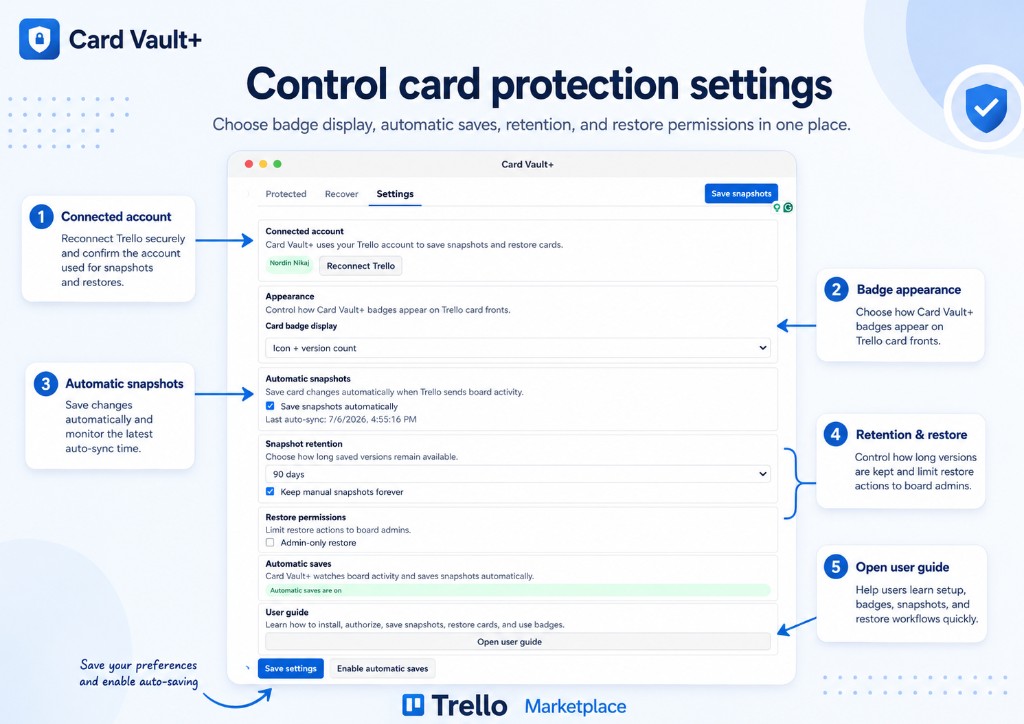
Settings at a glance
The annotated overview above maps to each section in the Settings tab:
| # | Section | What it controls |
|---|---|---|
| 1 | Connected account | Shows your linked Trello account and Reconnect Trello when authorization expires |
| 2 | Appearance | Card badge display — how Card Vault+ badges appear on card fronts (see Card badges) |
| 3 | Automatic snapshots | Turn on Save snapshots automatically and check Last auto-sync |
| 4 | Snapshot retention | How long automatic snapshots are kept, plus Keep manual snapshots forever |
| 5 | Restore permissions | Admin-only restore — limit restore actions to board admins |
| — | Automatic saves | Webhook health — whether Card Vault+ is receiving board activity for faster saves |
| — | User guide | Open user guide — opens this documentation site in a new tab |
| — | Footer actions | Save settings applies your changes; Enable automatic saves registers the board webhook |
Connected account
- Shows whether your Trello account is connected
- Reconnect Trello — re-authorize if the connection expired
Each board member manages their own account connection.
Appearance
Control how badges appear on card fronts:
| Option | What you see |
|---|---|
| Off | No card-front badge |
| Icon only | Shield icon without text |
| Icon + version count | Shield with number of saved versions |
| Icon + status text | Shield with short status label |
See Card badges for what each badge state means.
Automatic snapshots
| Setting | Description |
|---|---|
| Save snapshots automatically | Capture card versions when board activity is detected |
| Last auto-sync | When the most recent automatic snapshot completed |
If automatic saves show a warning, use Enable automatic saves in the footer to register or reconnect the board webhook.
Snapshot retention
| Setting | Description |
|---|---|
| Retention period | How long automatic snapshots are kept (30 days, 90 days, 1 year, or forever) |
| Keep manual snapshots forever | Manual saves ignore automatic retention cleanup |
Restore permissions
| Setting | Description |
|---|---|
| Admin-only restore | Only board admins can run restores |
Automatic saves status
The Automatic saves section shows whether the board webhook is active:
- Automatic saves are on — Card Vault+ is listening for board changes
- Automatic saves need attention — click Enable automatic saves in the footer to reconnect
If webhooks are unavailable, scheduled automatic snapshots still run in the background.
User guide & legal
- Open user guide — opens the Card Vault+ documentation (this site)
- Legal & Trust — links to the Privacy Policy and Terms of Service
Saving settings
Click Save settings at the bottom. Changes apply to the current board only.
Use Enable automatic saves when you need to turn on or repair webhook-driven automatic snapshots without changing other preferences.